
Visual proof of work, with privacy controls
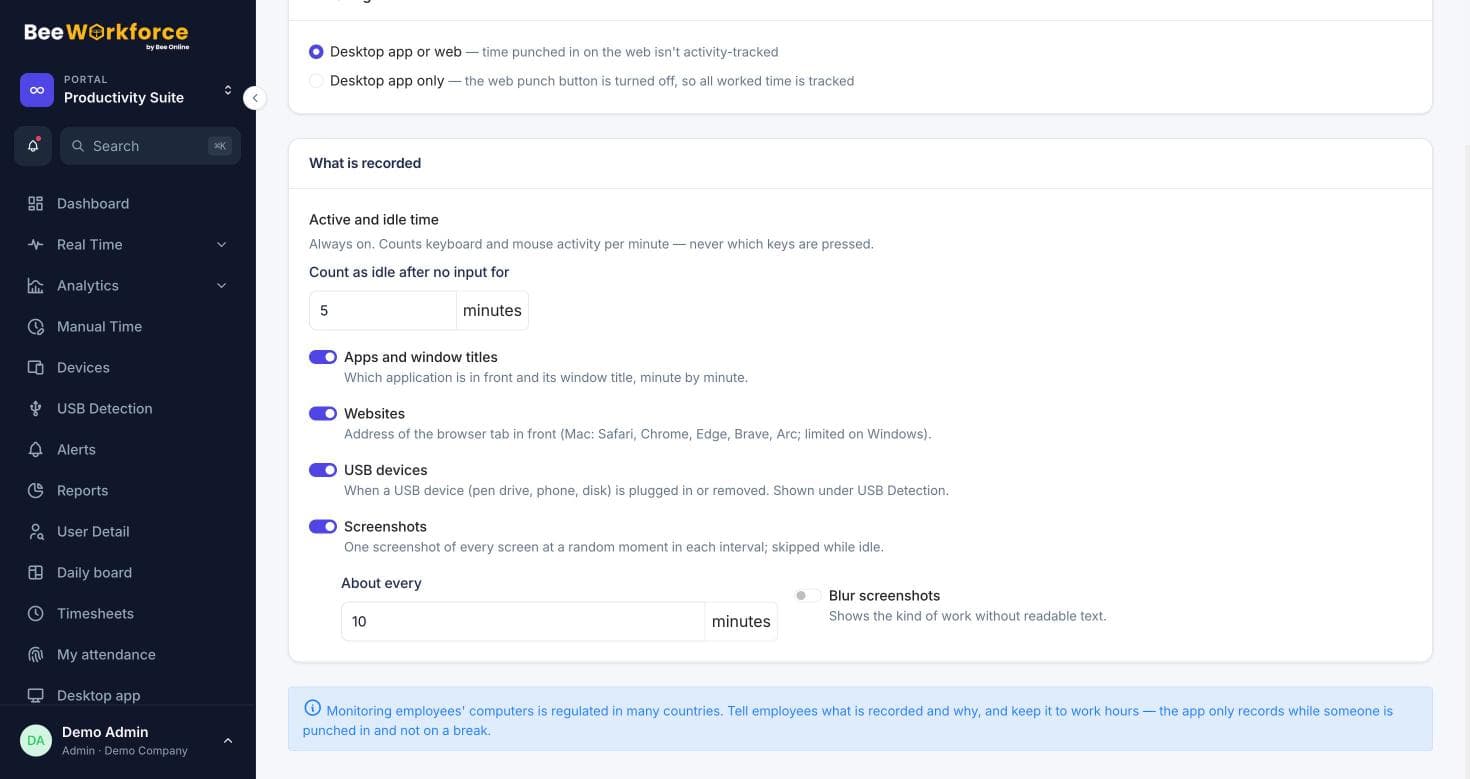
The desktop app can take screenshots at an interval you choose while someone is punched in. Blur them when you only need to know work was happening.
Your interval
Set how often screenshots are taken, or switch them off entirely.
Blur option
Blur screenshots so they show activity without readable detail.
Flag and follow up
Managers can flag a screenshot with a note and find it again later.
Browse by person and hour
Screenshots are grouped by person and time, alongside the app that was active. Filter to all screenshots, flagged ones, or the ones you flagged yourself.
- All, flagged and flagged-by-me views
- Grouped by hour
- Active app shown with each screenshot
Only during work
Screenshots are taken only while someone is punched in and not on a break. Retention rules delete old screenshots automatically.
- Never outside punched-in time
- Automatic deletion after your retention period
- Every access recorded in the audit log
How teams use screenshots
- Verify work for client billing
- Investigate a flagged security concern
- Check remote work without constant calls
- Keep a light-touch record with blurred screenshots
Frequently asked questions
Can screenshots be turned off?
Yes. Screenshots are a company setting; you can switch them off or blur them.
Do employees know screenshots are taken?
You can require employees to accept a monitoring notice before tracking starts, and the desktop app shows when it is tracking.
How long are screenshots kept?
As long as your data retention setting allows. Older ones are deleted automatically.
See BeeWorkforce with your own team
Book a 30-minute walkthrough. We'll set it up around how your team works and answer your questions.