
Time on projects, without the Friday scramble
People start a timer on a task or log time afterwards. Managers see hours by project and person, and hours on Jira issues can be sent to Jira automatically.
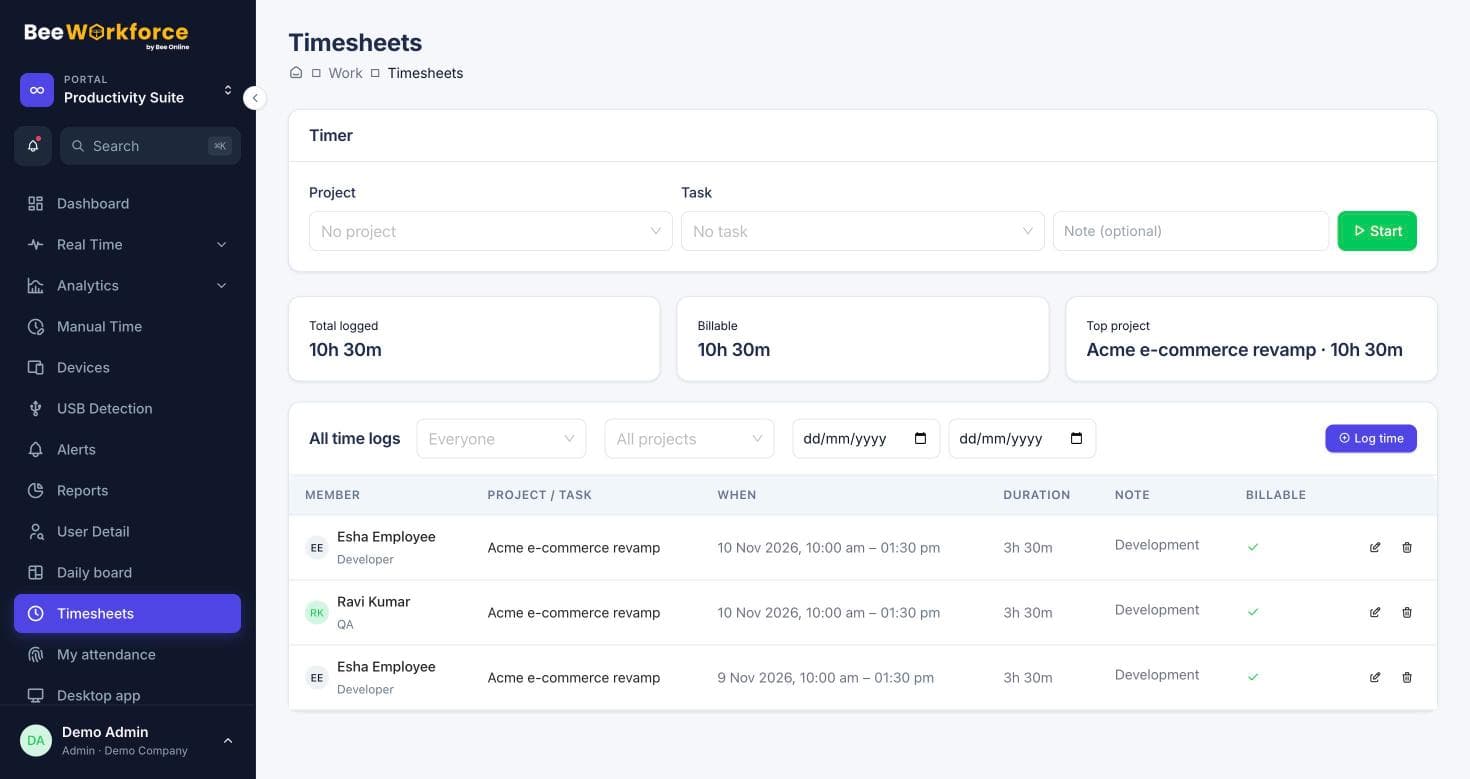
One-click timer
Start and stop a timer on any project or task.
Billable hours
Mark entries billable or not and report on both.
Jira worklogs
Time on imported Jira issues is sent back as worklogs.
Time where it belongs
Entries link to a project and task, with a note. Timesheet reports break hours down by person, project and billable status.
- Timer or manual entries
- Billable and non-billable
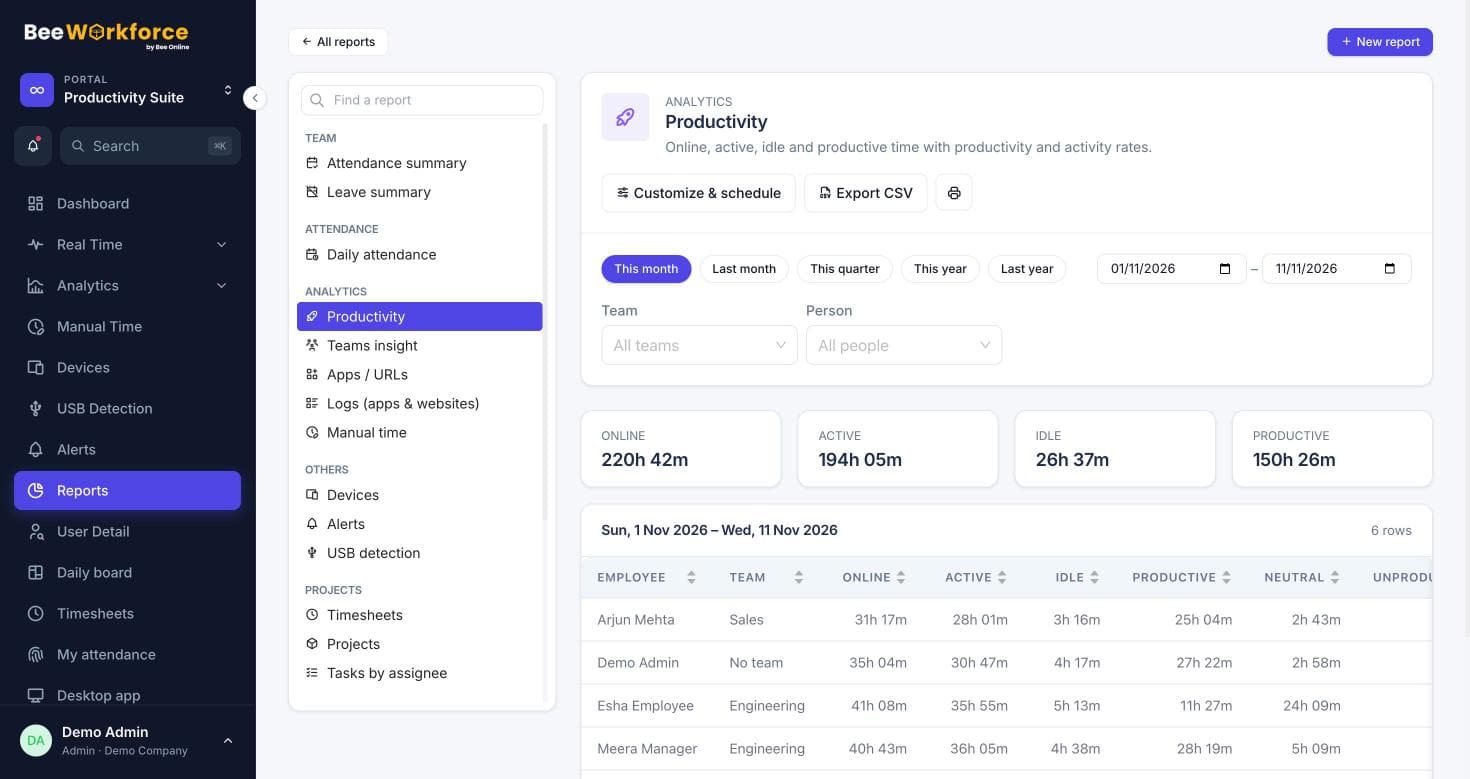
- Timesheet report and CSV export
Manual time with approval
Time away from the computer, such as meetings, calls or travel, can be added as manual time. Managers approve or reject it, with a reason.
- Meeting, call, travel, training and more
- Approve or reject with a note
- Overlaps and future dates rejected
How teams use timesheets
- Bill clients for hours worked
- Track effort on internal projects
- Record offline meetings and calls
- Keep Jira worklogs in sync without double entry
Frequently asked questions
Can people log time for meetings?
Yes, as manual time. It goes to their manager for approval.
How does the Jira sync work?
Once switched on, entries on tasks imported from Jira are added to the matching issue as worklogs; edits and deletions follow.
Is there a timer?
Yes. Start a timer on a task and stop it when you're done.
See BeeWorkforce with your own team
Book a 30-minute walkthrough. We'll set it up around how your team works and answer your questions.