
The whole working day on one line
The timeline turns minute-by-minute activity into coloured blocks, so you can see at a glance when people were focused, distracted or away.
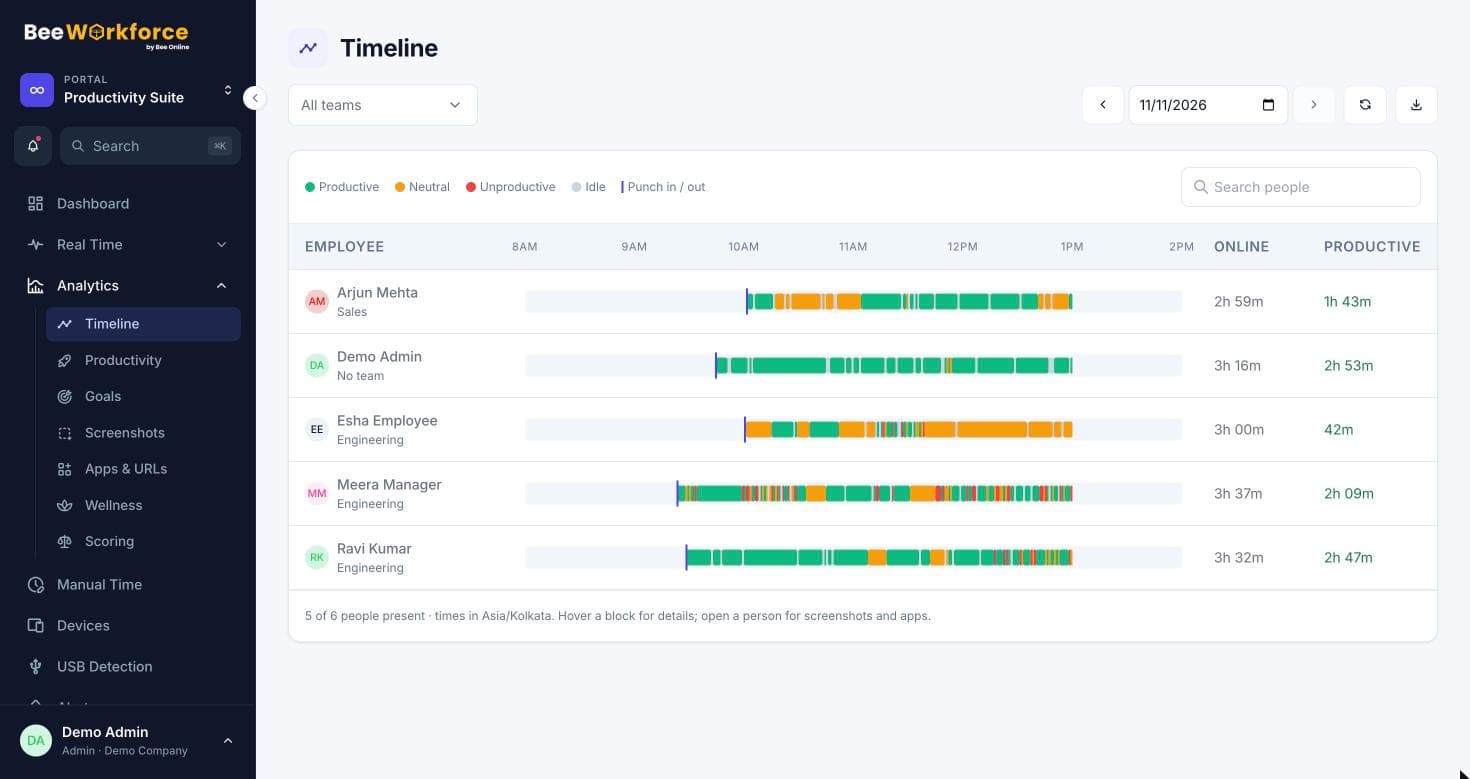
Colour-coded blocks
Productive, neutral, unproductive and idle time, merged into readable blocks.
Everyone side by side
Compare a whole team's day on one screen, filtered by team.
Any day
Pick a date to review how that day went for each person.
Context behind every block
Blocks come from the apps and websites people used, classified by your productivity rules. Only people who worked or punched in that day are listed.
- Classification follows your own categories
- Team-specific rules respected
- Idle time shown separately
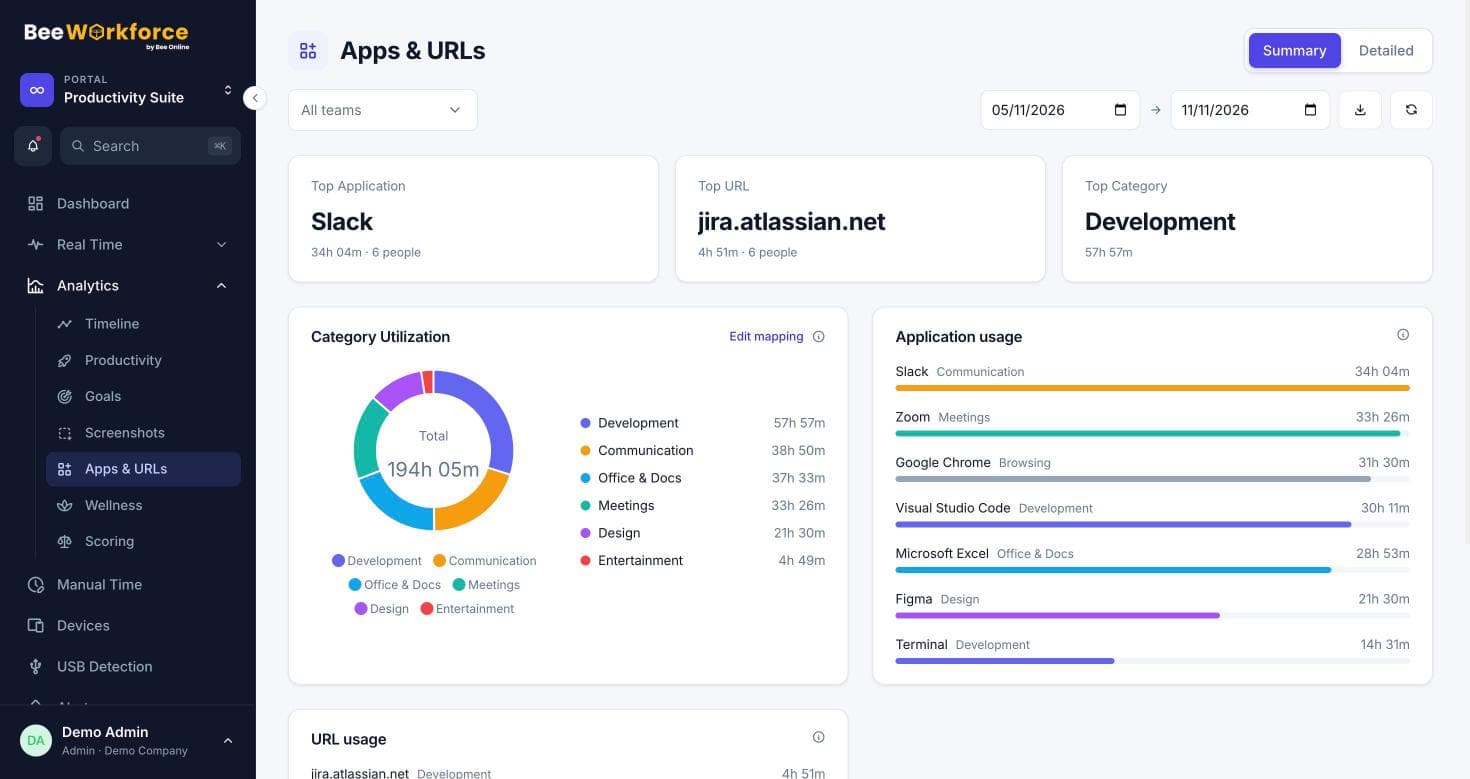
From the timeline to the detail
Open a person's day to see their apps, websites and screenshots for the same period, and the totals behind their productivity score.
- Per-person drill-down
- Linked to screenshots and app usage
- Same view available to the employee
How teams use timeline
- Review how a remote team's day went
- Find the hours when focus drops
- Check a disputed day quickly
- Coach people with a shared view of their own day
Frequently asked questions
What decides if a block is productive?
Your productivity categories. Each app or website belongs to a category marked productive, neutral or unproductive, and teams can have their own rules.
Is the timeline live?
It updates as the desktop app uploads activity, usually within a minute or two.
Who can see the timeline?
Admins see everyone, managers see their teams, and employees see their own.
Works well with
See BeeWorkforce with your own team
Book a 30-minute walkthrough. We'll set it up around how your team works and answer your questions.