
Employee activity log: an example and how to read it
An example of an employee activity log, what each column means, and how to read one fairly: active and idle time, apps, websites and productivity.
 By Himanshu Verma, Head TechnologiesPublished 6 min read
What is an example of an activity log?
An activity log is a time-ordered record of what someone worked on during the day. A typical software log has five columns. Time shows when each block started and ended. App or website shows what was in use. Category marks the time as productive, neutral or unproductive. Active counts minutes with keyboard or mouse input. Idle counts minutes with no input. For example, a support analyst might show 68 active minutes in a helpdesk tool between 09:55 and 11:10. The same log might show 28 idle minutes on a call. That idle time does not mean the person was away. People listen on calls without typing. So read patterns over weeks, not single blocks. Let employees see their own log. BeeWorkforce builds this log automatically from its desktop app, only while someone is punched in. It never records what people type.
An activity log is a time-ordered record of what someone worked on during the day. A paper version lists tasks and times by hand. A software version is filled in automatically from a desktop app, minute by minute, while someone is punched in. This guide shows an example and explains how to read it fairly.
An example of an activity log
Here is one morning for a fictional support analyst, as a desktop tracking app would record it. Times are grouped into blocks for readability.
| Time | App or website | Category | Active | Idle |
|---|---|---|---|---|
| 09:28 | Punch in (desktop app) | - | - | - |
| 09:28 to 09:55 | Outlook | Neutral | 24 min | 3 min |
| 09:55 to 11:10 | Helpdesk (web) | Productive | 68 min | 7 min |
| 11:10 to 11:25 | Break: tea | - | - | - |
| 11:25 to 12:05 | Excel | Productive | 36 min | 4 min |
| 12:05 to 12:20 | YouTube | Unproductive | 15 min | 0 min |
| 12:20 to 13:00 | Microsoft Teams (call) | Productive | 12 min | 28 min |
| 13:00 | Break: lunch | - | - | - |
What each column means
- Time: when the block started and ended. Breaks pause tracking.
- App or website: what was in front of the person. Window titles can be hidden in settings.
- Category: productive, neutral or unproductive, from the rules your company set for that team.
- Active: minutes with keyboard or mouse activity. Only counts are recorded, never what was typed.
- Idle: minutes with no input at all.
How to read it fairly
Look at the call from 12:20 to 13:00. It shows 28 idle minutes. That does not mean the analyst was away. People listen on calls without touching the keyboard. Context like this is why a single block should never be judged on its own.
- Read patterns over weeks, not single blocks or single days.
- Expect idle time in meetings, calls, reading and thinking.
- Check the categories first. A wrongly classified tool skews every number.
- Let the employee see the same log, so mistakes are spotted quickly.
- Start conversations with questions, not with numbers.
Manual log or automatic log?
A manual activity log is a good habit for one person who wants to understand their own day. It is a poor tool for a team. People round, forget and fill gaps from memory. An automatic log is accurate to the minute and costs nobody any time. It needs clear rules about what is recorded and when.
How BeeWorkforce builds an activity log
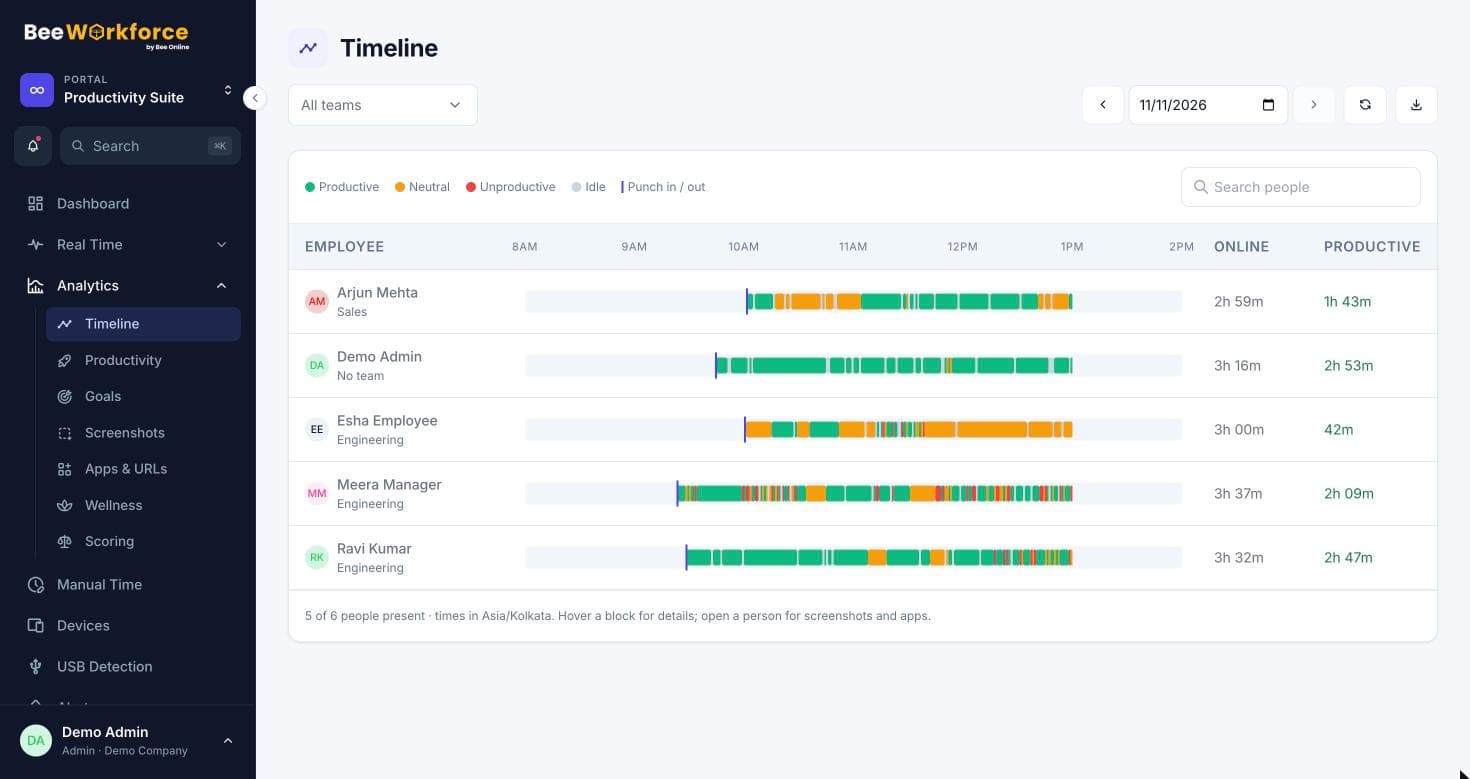
The BeeWorkforce desktop app for Windows, macOS and Linux records the app and website in use each minute, and whether the minute was active or idle. It records only while someone is punched in, and it stops for breaks and at punch-out. The timeline turns those minutes into coloured blocks of productive, neutral, unproductive and idle time. Admins and managers can open any day for a person they manage and drill into apps, websites and optional screenshots for the same period. Categories follow your own rules, and each team can override them.
Sources: Timesheet (Wikipedia) · Employee monitoring (Wikipedia)
Keep reading
What is the best employee time tracking system? How to choose one
How to choose the best employee time tracking system for your team: the features that matter, the questions to ask, a scoring table and a two-week trial plan.
15 Nov 2026 · 8 min read
How to track employee time off without spreadsheets
What software to use to track employee time off, and how to set up leave types, balances, approvals and holidays so leave never shows up as an absence.
15 Nov 2026 · 7 min read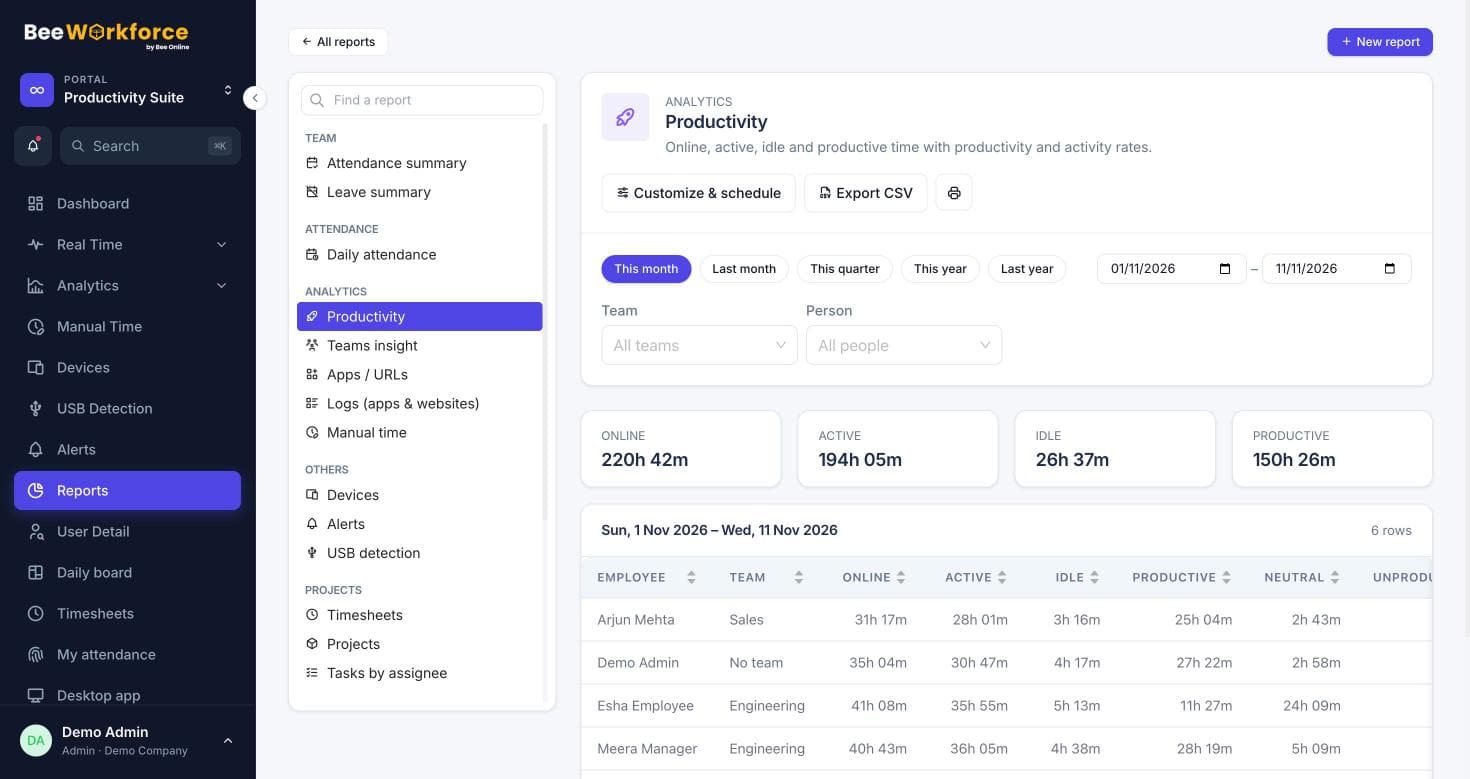
How to build and schedule a custom report
Step by step: pick a data source, choose columns, filter rows with conditions, sort, share and email a report on a schedule with BeeWorkforce's report builder.
6 Nov 2026 · 6 min readSee BeeWorkforce with your own team
Book a 30-minute walkthrough. We'll set it up around how your team works and answer your questions.